

Most time trackers want an account, a cloud database, and permission to watch your screen from someone else’s server. TimeKeeper does not. It lives in the Windows notification area, writes to %APPDATA%\TimeKeeper, and stays there.
At a poll interval you choose — five minutes is the default — it records what was in the foreground. At the end of the day you generate a report, assign windows to tasks, and see where the hours went. No signup. No upload.
Why we built it
Freelancers and consultants still have to answer “what did I work on?” Privacy-first tracking is usually a spreadsheet you forget to fill in. We wanted something that runs at login, stays out of the way, and produces a report you can actually use for invoicing or a weekly review.
1. Tracking from the tray, on clock boundaries
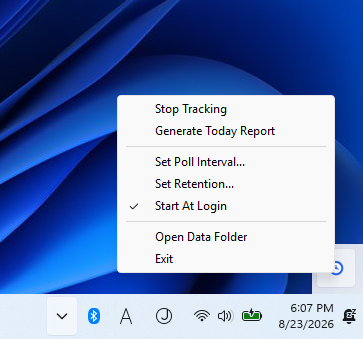
TimeKeeper does not sprinkle samples at random. It polls on clock boundaries: 10:00, 10:05, 10:10, and so on. That makes the log easy to read and easy to explain.
From the tray menu you can:
- Start or stop tracking
- Set the poll interval (one minute or more)
- Set retention in days and turn cleanup on or off
- Enable or disable start at login (your user Run key, not a machine-wide service)
- Generate today’s report
- Open the data folder
- Exit
The app can be packaged as a single TimeKeeper.exe with the included build script if you want a one-click install for a machine that should not see a Python prompt.
2. What it actually captures
Each sample stores a timestamp plus:
- Active window title
- Process name
- URL and domain for supported browsers (Chrome, Edge, Firefox, Brave, Opera — best effort)
- Explorer folder path when File Explorer is in front
LOCKEDwhen the workstation is lockedIDLEafter a stretch with no input (five minutes by default)
That mix is what makes the report useful. “chrome.exe” alone is not a timesheet. “chrome.exe + a client domain + a document title” is closer to the truth. Idle and lock states keep you from billing a lunch break as deep work.
Everything sits in a local SQLite database (activity.sqlite3) next to config.json and a reports folder.
3. Reports you can label, not just dump
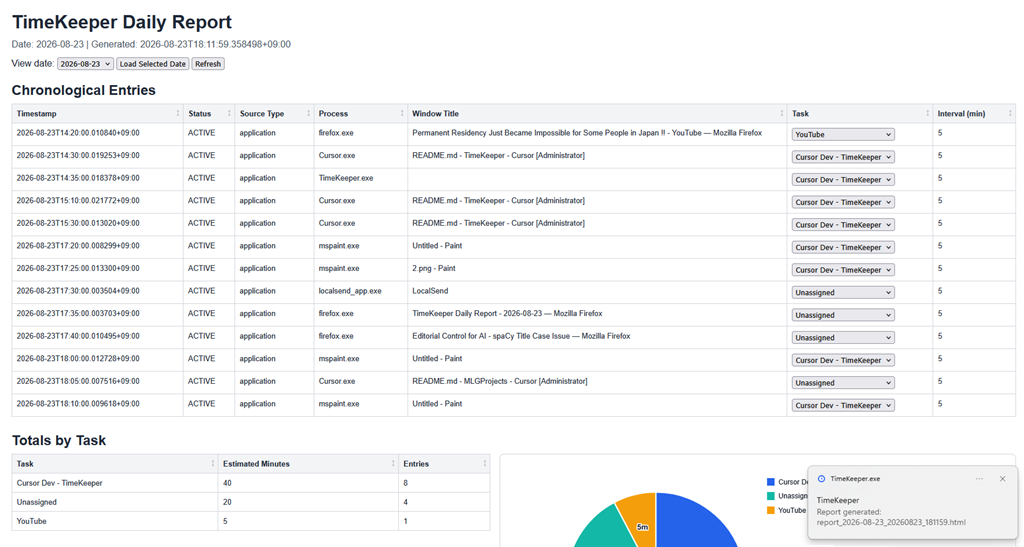
Generate Today Report writes a timestamped HTML file and opens it in your browser. The report is not a static printout. While TimeKeeper is running, a small local API feeds it:
- A date selector filled from days that actually have data
- A chronological activity table
- Totals by App and Window, with an editable Task dropdown on each row
- Task assignments that persist, so the same window can classify itself next time
- Totals by Task, including a pie chart you can click to filter
Unassigned rows are highlighted so you can walk the list once and have a labeled day. That is the feature we care about: not more charts, but a path from raw windows to named work.
4. Local by design
Data never leaves the PC. Retention cleanup (30 days by default, optional) is yours to enable. If you stop the tray app, tracking stops. If you open the data folder, you see the files. There is no hidden sync.
That also means TimeKeeper is a Windows tool. It reads the foreground window, lock state, and last input through the usual Win32 APIs. It is not a cross-platform SaaS dashboard.
Who it is for
- Freelancers and consultants who need a private daily log for invoices
- Makers and studio operators who want to see how a day actually split across apps
- Anyone tired of cloud trackers that treat a window title as someone else’s data
- People who will fill in a task name if the app remembers it the next time
Try it
TimeKeeper is an AppHaven Windows utility. We supply the executable. If you want to run it from source with Python, to build your own TimeKeeper.exe with the included script, or if you want a packaged build, a custom report, or a variant for a team that still refuses the cloud, write to projects@apphaven.net.

Leave a Reply